


Transferring measurement data from a Transformer DC Resistance Tester to a computer is a crucial task for many professionals in the electrical testing industry. As a leading supplier of Transformer DC Resistance Testers, we understand the importance of seamless data transfer for efficient analysis and record - keeping. In this blog, we will explore the various methods and best practices to achieve this goal.
Understanding the Need for Data Transfer
The data obtained from a Transformer DC Resistance Tester is invaluable. It provides insights into the health and performance of transformers, helping to detect potential issues such as short - circuits, open - circuits, or uneven winding resistances. By transferring this data to a computer, technicians and engineers can perform in - depth analysis, generate reports, and store historical data for future reference.
Methods of Data Transfer
1. USB Connection
One of the most straightforward methods of transferring data from the tester to a computer is via a USB connection. Most modern Transformer DC Resistance Testers are equipped with a USB port, allowing for easy plug - and - play functionality.
- Steps for USB Data Transfer:
- First, ensure that the tester is powered off. Connect one end of the USB cable to the USB port on the tester and the other end to an available USB port on the computer.
- Power on the tester. The computer will usually recognize the device automatically and install the necessary drivers. If the drivers are not installed automatically, you may need to download them from the manufacturer's website.
- Once the drivers are installed, open the appropriate software on the computer. This software is typically provided by the tester manufacturer and is designed to communicate with the tester and retrieve the measurement data.
- In the software, select the option to import data from the tester. The software will then establish a connection with the tester and transfer the data to the computer.
2. Bluetooth Connection
Bluetooth technology offers a wireless alternative for data transfer. It is convenient as it eliminates the need for cables, allowing for greater flexibility in the testing environment.
- Steps for Bluetooth Data Transfer:
- Enable Bluetooth on both the Transformer DC Resistance Tester and the computer. On the tester, navigate to the Bluetooth settings and put it in pairing mode.
- On the computer, open the Bluetooth settings and search for available devices. Select the tester from the list of discovered devices and follow the on - screen prompts to complete the pairing process.
- After pairing, open the data transfer software on the computer. The software should be able to detect the paired tester and establish a connection.
- Once the connection is established, select the option to transfer data from the tester to the computer. The data will be wirelessly transmitted to the computer.
3. Wi - Fi Connection
Wi - Fi is another wireless option for data transfer, especially useful for large - scale testing operations where multiple testers need to be connected to a central computer or server.
- Steps for Wi - Fi Data Transfer:
- Configure the Transformer DC Resistance Tester to connect to the local Wi - Fi network. This may involve entering the network name (SSID) and password in the tester's Wi - Fi settings.
- Ensure that the computer is also connected to the same Wi - Fi network.
- Open the data transfer software on the computer. The software will search for testers connected to the same network.
- Once the tester is detected, select it in the software and initiate the data transfer process. The data will be transferred over the Wi - Fi network to the computer.
Best Practices for Data Transfer
1. Data Validation
Before transferring data, it is essential to validate the measurements. Check for any abnormal readings or errors in the tester's display. This can help prevent the transfer of inaccurate data, which could lead to incorrect analysis.
2. Software Compatibility
Ensure that the data transfer software on the computer is compatible with the Transformer DC Resistance Tester. Outdated software may not be able to communicate with the tester properly or may not support the data format used by the tester.
3. Data Backup
After transferring the data to the computer, make sure to back it up regularly. This can be done by saving the data to an external hard drive, a cloud - based storage service, or a network - attached storage (NAS) device. Data backup helps protect against data loss due to computer failures, software glitches, or other unforeseen events.
Related Products
In addition to our Transformer DC Resistance Testers, we also offer a range of other high - quality electrical testing equipment. For example, our AC DC High Voltage Divider is designed for accurate measurement of high voltages in both AC and DC circuits. Our On - load tap - changer tester handheld is a portable and efficient tool for testing on - load tap - changers in transformers. And our 10000V megger insulation resistance tester is ideal for measuring insulation resistance in electrical systems.
Conclusion
Transferring measurement data from a Transformer DC Resistance Tester to a computer is a relatively straightforward process, thanks to the various connection options available today. By following the methods and best practices outlined in this blog, you can ensure a smooth and reliable data transfer, enabling you to make informed decisions based on accurate data.
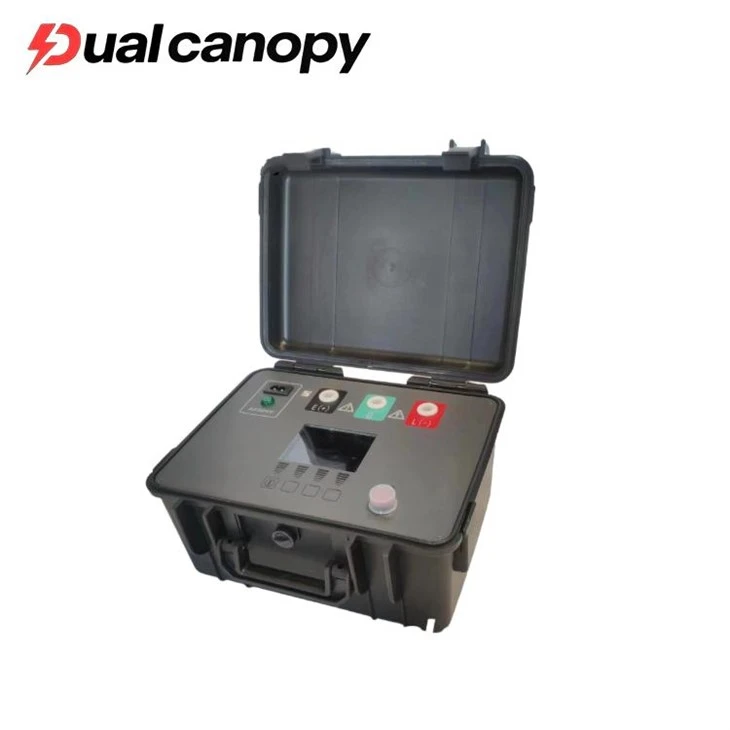

If you are interested in our Transformer DC Resistance Testers or any of our other electrical testing equipment, we welcome you to contact us for procurement and further discussions. We are committed to providing high - quality products and excellent customer service to meet your testing needs.
References
- Electrical Testing Handbook, 3rd Edition
- Transformer Testing Standards and Guidelines, IEEE Publications


